
Your personalised EV road-trip co-pilot.
Give it your start, destination and EV. It verifies the real chargers, hotels, food stops and road sides along your actual Google Maps route — then hands you a colourful, print-ready A4 map plus the exact numbers to trust.
What you'll get
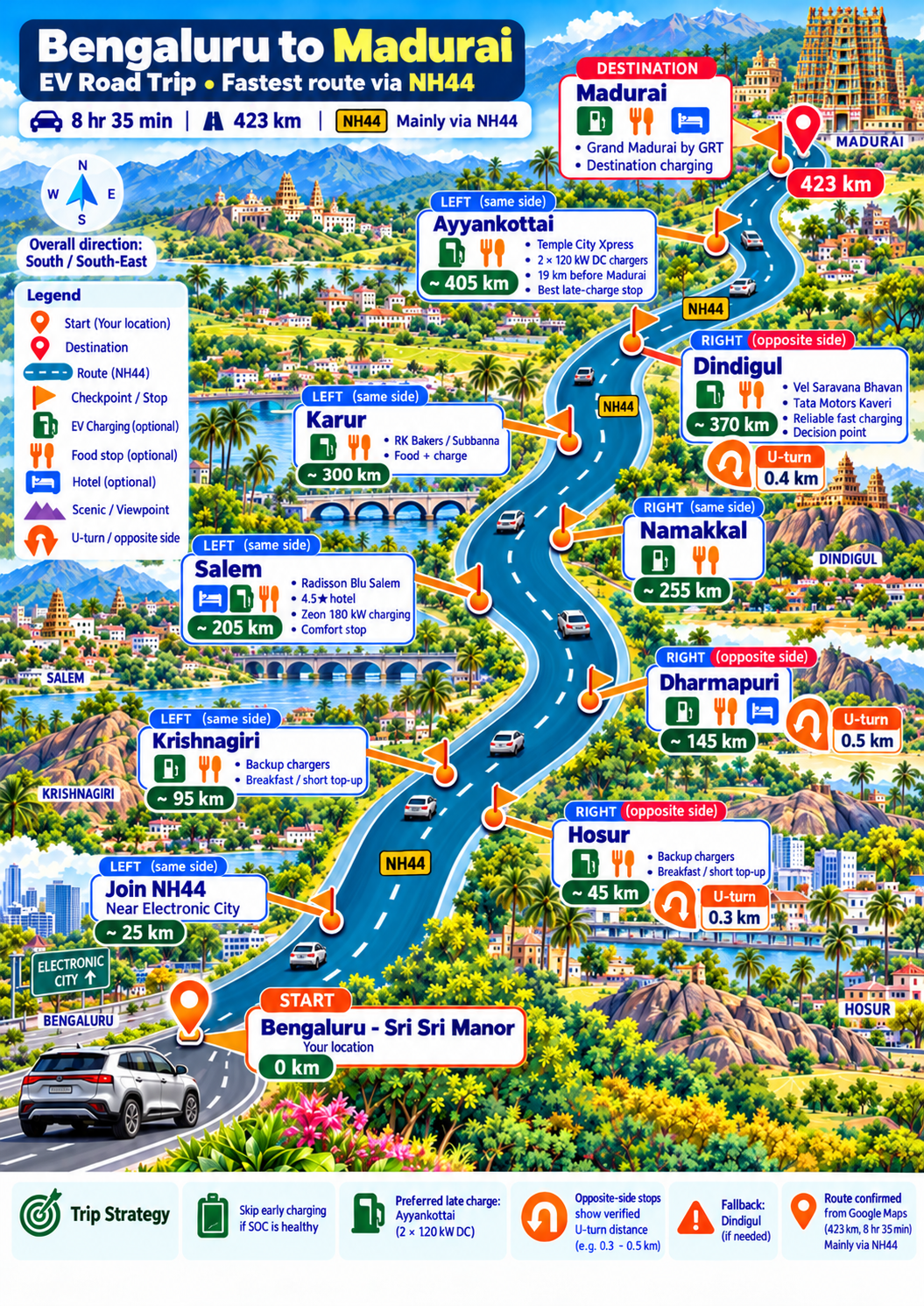
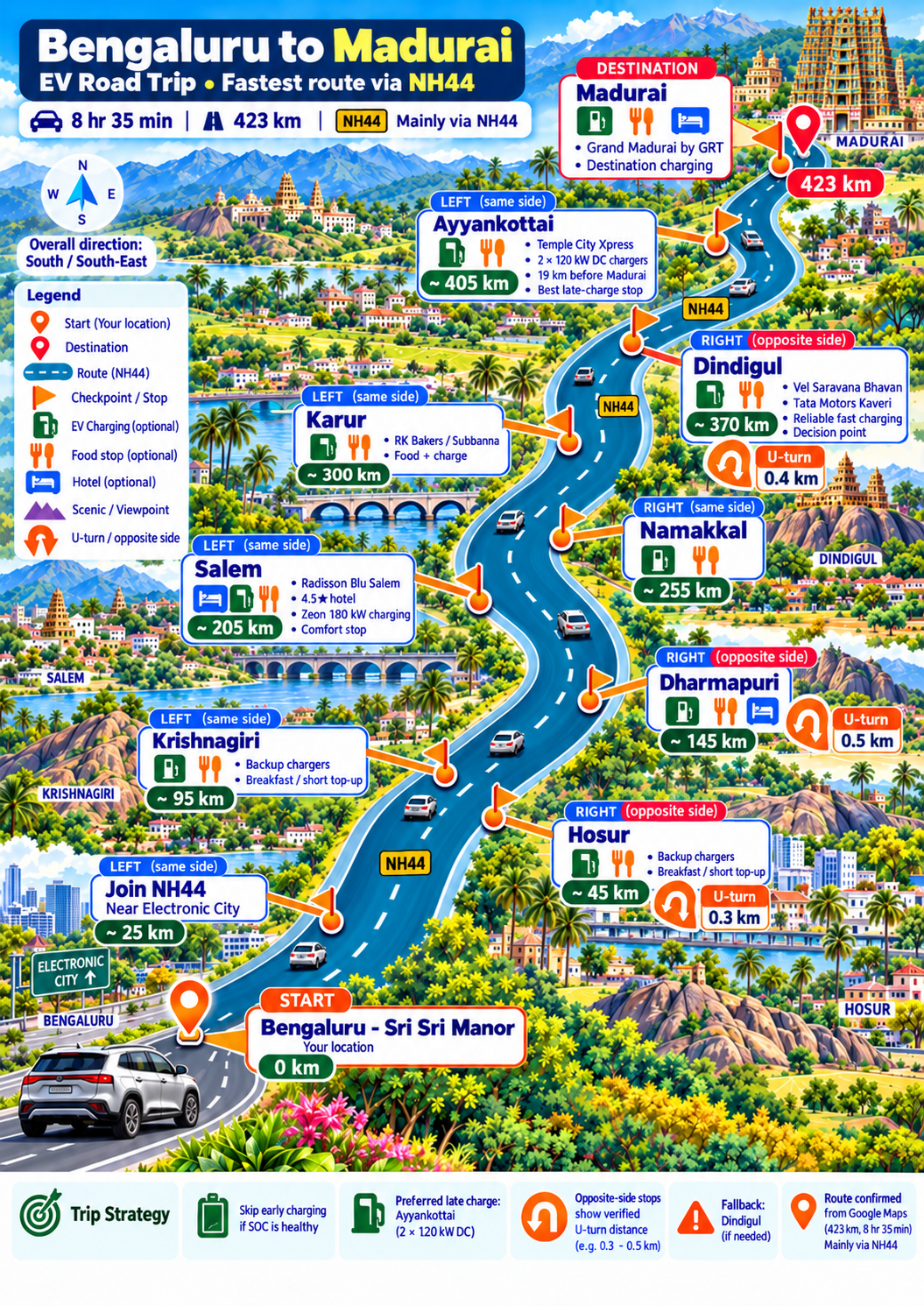
Not a generic route poster — a verified, personalised trip plan designed to actually drive by.
Verified EV charging
Real fast chargers along your route — operator, power and connector — with a preferred stop and a backup, matched to your battery and starting charge.
Same-side & U-turn logic
Each stop is marked LEFT/RIGHT and same-side or opposite-side for your real direction of travel — opposite-side stops show a verified U-turn distance.
Print-ready A4 map
A colourful, premium A4 infographic you can print and keep on the dashboard — start at the bottom, destination at the top, highway shields and checkpoints.
Exact-numbers text block
Because images can blur small digits, you also get a text source-of-truth block with the exact kilometres, sides and U-turn distances to rely on.
How to use it in ChatGPT
Written for non-technical travellers. If you can send a WhatsApp message, you can do this. It takes about five minutes the first time.
Download the agent files
Scroll to the Download section below and tap “Download everything”. You'll get one small ZIP file. On a phone or laptop, open it so the files inside are ready to upload.
Open ChatGPT and create a Project
Go to chatgpt.com and sign in. In the left sidebar click “+ New project”, and name it something like “My EV Road Trip”. (Projects need a paid ChatGPT plan such as Plus. If you don't have Projects, you can instead start a normal chat and attach the files to your first message.)
Upload all the downloaded files
Inside the Project, add files (the paperclip / “Add files” button) and upload all of them — the five guide files and the example map image. These teach the agent exactly how to plan and draw your map.
Paste the instruction
Open INSTRUCTION.md, copy everything inside, and paste it into the Project's instructions box (or simply as your very first message). This switches ChatGPT into road-trip-planner mode.
Tell it about your trip & get your map
Share your start, destination, EV model, battery % and departure time. For the best result, finalise the route in Google Maps and send a screenshot. The agent confirms the route, verifies every stop, then delivers your A4 map plus the exact-numbers text block.
Tip for the best map
Send a full Google Maps screenshot of the exact route you'll drive. It's the one thing that lets the agent verify which side of the road each stop is on and the real U-turn distances — without it, those details stay marked “not verified”.
Download the agent
Grab everything in one ZIP, or pick up individual files. These are the exact files the agent needs inside ChatGPT.
Frequently asked
Do I need to pay for ChatGPT?
Which ChatGPT model should I use?
What if I don't have a Google Maps screenshot?
Is my data stored anywhere by cukker?
Can I print the map?
Ready to map your next drive?
Download the files and have your personalised A4 road-trip map in a few minutes.
Download the agent